How to use BoothBot: scan business cards, capture leads, and follow up — the complete guide.
BoothBot turns every business card you collect at a trade show into a structured contact in a Google Sheet — within 30 seconds, from any device, in any of four channels. Snap a photo, send a voice note, paste an email. The bot does the OCR, the data extraction, the deduplication, and the timestamping. By the time you finish the conversation, the contact is already in your sheet and ready for follow-up.
Last updated 2026-09-03 · DaGaMa Intelligence · ~12 min read
How to scan business cards at a trade show with BoothBot.
Outcome: every business card you receive becomes a structured row in your Google Sheet, with name, title, company, email, phone, and timestamp — captured in roughly 30 seconds per card. Time to first capture: about 90 seconds from first sign-up.
Best for: show-floor lead capture, conference networking, anywhere you collect more cards than you can hand-type.
Pick a channel.
Snap the front of the card.
BoothBot reads it back.
The row lands in your Sheet.
Use the buttons under each capture.
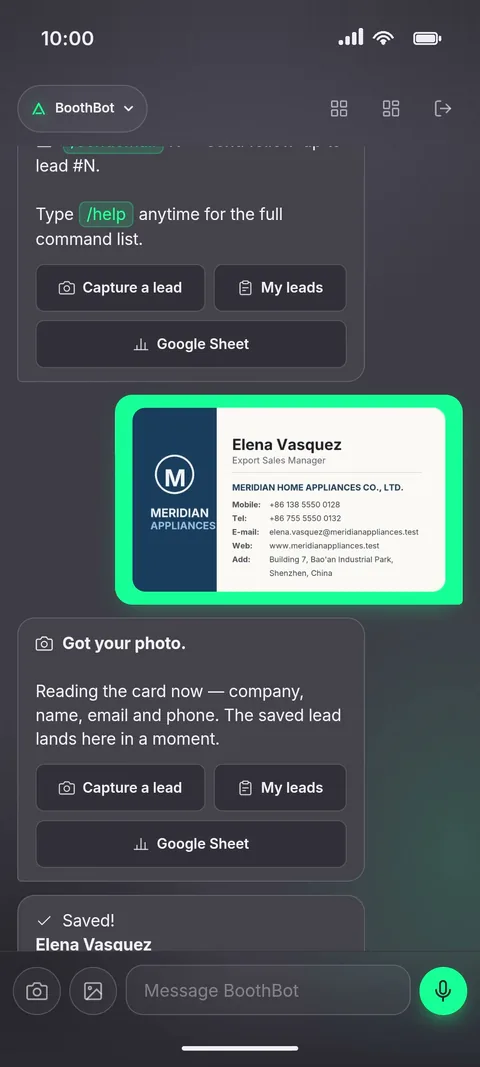
Real captures from the DaGaMa app. All companies, contacts, and amounts shown are fictional demo data.
Mockups above approximate the BoothBot experience across channels. Email addresses and sender names are blurred for privacy.
Frequently asked questions.
What channels does BoothBot work in?
Telegram, WhatsApp, WeChat, and web. All four use the same backend, the same Google Sheet, and the same team data. Pick the channel your prospect already has open on their phone — every captured card lands in the same place regardless.
How accurate is the business card OCR?
BoothBot reads Latin and non-Latin scripts (Chinese, Japanese, Arabic, Hebrew, Russian) with text recognition and DaGaMa Intelligence's vision model. Unusual domain names occasionally need a correction, which you can make straight in your sheet.
Does BoothBot work offline at trade shows where Wi-Fi is weak?
The capture itself (photo + chat upload) needs basic mobile data, but the queue handles flaky connections gracefully — your photo retries until it reaches BoothBot. The OCR + Sheet write happens server-side, so the heavy work is not on your phone.
Can multiple team members capture into the same sheet?
Not yet. Each BoothBot account writes to its own sheet. You can share your sheet with your team so everyone sees each lead land in real time; team accounts that capture into one sheet are planned.
How much does BoothBot cost?
See pricing for current tiers. The 3-Show Bundle is the choice professional exhibitors make — it works out cheaper per show than three single-show passes and covers your full annual show calendar for most ICPs.
How do I correct an OCR mistake or add extra details after the card was scanned?
On Telegram, reply directly to the BoothBot confirmation message for that contact with the correction or extra detail in plain language — "Company should be Beacon HQ not Bacon HQ", "they confirmed the order on Wednesday at $4.20". BoothBot reads the reply and updates the same Sheet row: no duplicate row, no separate correction flow. Reply "delete" to remove the lead entirely. On WeChat, text sent after a card is appended to that lead as a note; for field-level fixes on WhatsApp or WeChat, edit the row in your Google Sheet (/sheet) or from the dashboard — it is your sheet, edits there are the record.
How is BoothBot different from card-scanning apps that came before it?
Older card-scanning apps lock data into the app itself, charge per-card, and require staff at the booth to learn a new tool. BoothBot lives inside Telegram, WhatsApp, and WeChat — tools your team already uses — and writes to a Google Sheet you own forever, regardless of whether you keep paying.
Can I switch channels mid-show — start in WeChat then continue on Telegram?
Yes. Open your dashboard → Channels tab → "Switch active channel". DaGaMa sends a confirmation prompt to your current channel; tap confirm and the bot follows you to the new one. The single-active rule prevents accidental double-capture of the same card across channels. Your data, sheet, and team all stay the same — only the chat surface changes.
I need help — how do I contact support?
Type "/support" in any channel (Telegram, WhatsApp, WeChat, or the web chat) — the bot asks for your issue in the next message and opens a ticket. A real person replies to your account email within the hour (usually under 30 minutes during show season). On the website, the floating "?" Helper widget in the corner answers most common questions instantly; for anything it cannot, tap "Talk to a human" to escalate.
Capture your first card.
Sign up with your email. BoothBot is ready in your Telegram, WhatsApp, and WeChat within 30 seconds. The first 24 hours are unlimited and free — every card you scan stays in your Google Sheet forever.
Last updated 2026-09-03. Questions? Contact us